Watch the 2-minute setup
LT Lingoa is a block theme for language schools: group and private classes, business language, exam preparation, kids’ courses and online classes. Its look comes from a passport: a cool page, a navy cover and six ink stamps for the levels A1 to C2. See it live in the demo.
Section patterns (Pro)
| Pattern | Use it for |
|---|---|
| Hero with passport page | A large headline, a quiet line of greetings in the languages you teach, and a passport page for the free level test (time, where, what you get, price) with six level stamps that press in when the page loads. |
| Languages taught | Each language with its own name in that language and the course types that run for it. |
| Courses table | Group, private, business, exam preparation and kids’ courses as rows: line drawing, who it suits, hours a week, price and a trial link. |
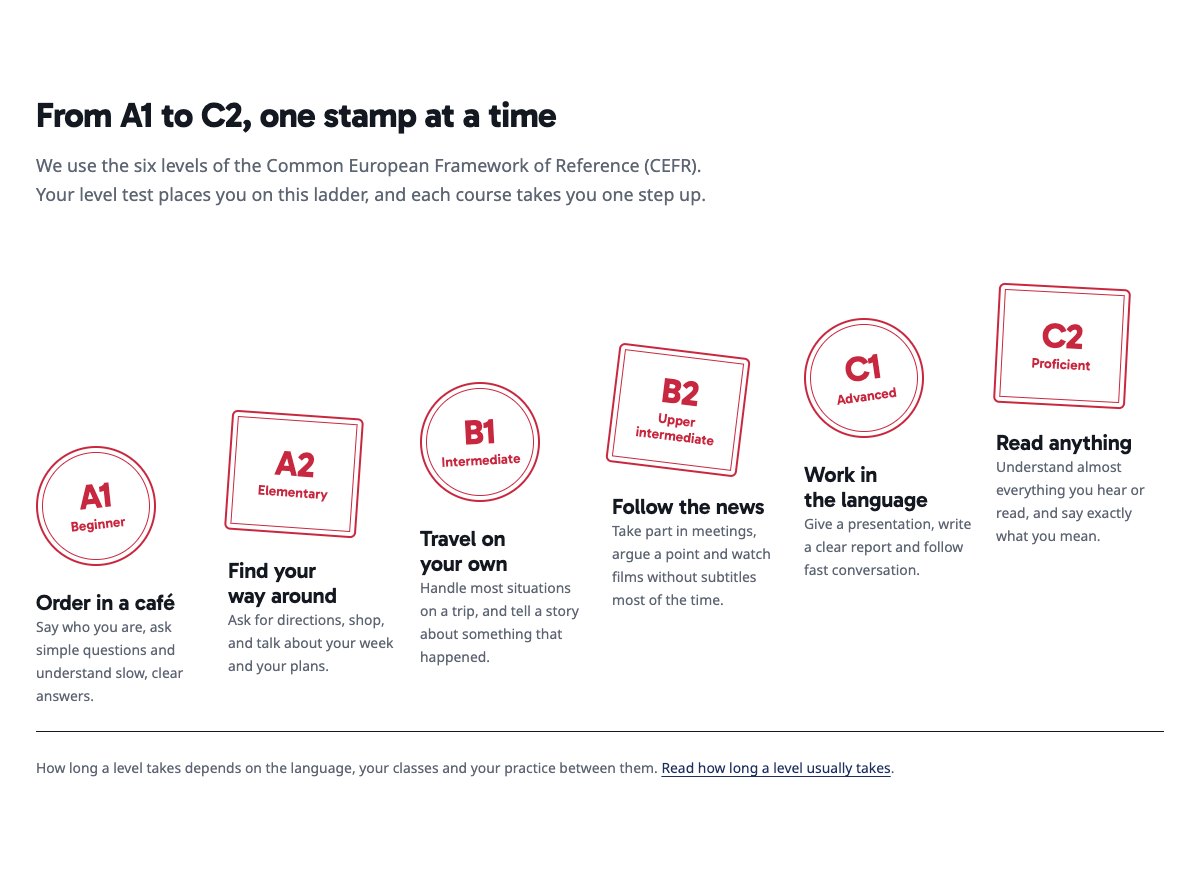
| Levels A1 to C2 (stamp ladder) | The six CEFR levels as passport stamps climbing from A1 to C2, each with what you can do at that level. |
| Weekly class timetable | One row per day with its classes. Online classes have a dashed outline; a “New course” tag marks a course that is new this term. |
| Online or in person | Two ways to study side by side, each with a picture, a short text and a ticked list. |
| How the level test works | Four numbered steps: book a time, take the test, get your level, try a class. |
| About the school | Picture of a class, the school’s story and a ticked list. |
| Teachers | Four portraits with the languages each teacher teaches and a one-line bio. |
| Reviews from students and parents | Three sample quotes (use real reviews only). |
| Frequently asked questions | Time per level, certificates, the level test, starting above A1, missed classes, kids’ ages. |
| Class hours and location | Class hours, address, phone and a map with directions. |
| Contact details | Call, email and visit, each under a hairline. |
| Level test call to action | Navy band with booking and phone buttons. |
| Latest articles | Your three newest blog posts. |
Page layouts (Pro)
- Home page: the complete homepage.
- Courses page: languages, the courses table, levels, timetable, online or in person, FAQ and the call to action.
- About page: the school’s story, teachers, reviews, how the level test works and the call to action.
- Contact page: contact details, FAQ, class hours with map and the call to action.
Demo content to replace
- Phone
(555) 017-0124, email[email protected]and the Lantern Street address in Springfield (header, footer, contact sections), and the “Two minutes from Central Station” note. - Class hours in the top bar, footer and the class hours section.
- The greetings line in the hero: one word for each language you really teach.
- The languages and their course types, the courses table and every price in the “Example price” column, with the “Example prices” note.
- The timetable (every day, time, online class and “New course” tag), marked “Example timetable”.
- The FAQ answers, the exam names marked “(sample exam names)” and the missed-class rule marked “(example policy)”.
- The four sample teachers, their bios and photos, and the sample reviews from “Sample adult student” and “Sample parent”.
- The “Book the free level test” buttons: link them to your booking or scheduling system.
Write only what is true for your school. Do not promise how fast someone will learn (no “fluent in 3 months”) or exam results, and do not present a school certificate as an official exam result. Name an exam only if you really prepare students for it, and do not add teacher qualifications or native-speaker claims you cannot confirm. Publish reviews only from real students and parents who agreed to it. Do not show children who can be identified in photos without a parent’s written permission: backs, hands and books work well.
Photo guide
Replace the illustrations and placeholder portraits with your own photos: select the image in the editor, then Replace. These sizes look sharp on large screens without slowing the site down.
| Image | Shape | Upload size | Tips |
|---|---|---|---|
| About photo | Landscape 5:4 | 1600 × 1280 px | A class at the whiteboard, ideally with students seen from behind or from the side. |
| In person photo | Landscape 5:4 | 1600 × 1280 px | A small group class in your classroom, seen from the back of the room. |
| Online photo | Landscape 5:4 | 1600 × 1280 px | A learner with headphones and a notebook at a laptop, or your online classroom set-up. |
| Teacher photos | Portrait 4:5 | 800 × 1000 px | Head and shoulders, same background and light for everyone. Ask each person before you publish. |
| Map picture | Landscape 3:2 | 1600 × 1040 px | A screenshot of your map, or keep the illustration; the button links to Google Maps. |
| Blog featured images | Landscape 3:2 | 1600 × 1067 px | Shown on the blog cards and at the top of each post. |
| Logo (header and footer) | Wide or square | At least 200 px tall, PNG with a transparent background or SVG | Shown about 44 px tall. Set it in Appearance → Editor: select the logo block. |
| Site icon | Square | 512 × 512 px | The small icon in browser tabs. Settings → General → Site Icon. |
- Save photos as JPEG or WebP and keep each file under about 300 KB (a free tool such as squoosh.app does this).
- WordPress crops to the shape for you: select the image → Crop in the toolbar to choose which part shows.
- Fill in the Alternative text of each photo (for example “Our reception desk”) for accessibility and Google.
- Only use photos you own or have permission for. Ask clients before you publish photos of them.
Colour styles
Passport (default: cool page, ink, passport navy and stamp red), Night train (dark blue night with pale blue and a soft red stamp), Visa green (green cover with a deep red stamp) and Postcard (sunny blue with a postmark orange). Try them in the live demo with the colour dots in the top bar.
Level test bookings
LT Lingoa has no built-in form. Link the “Book the free level test” buttons to your booking or scheduling system, or add your form plugin’s block to the Contact page. Ask only for what you need to arrange the test: a first name, the language, a contact and, for children, a parent’s contact.