Watch the 2-minute setup
LT Kindora is a block theme for charities and local nonprofits: programmes, donations, volunteering and fundraising events. Its look comes from an honest ledger: one stacked bar shows where each dollar goes, every gift says what it buys, and everything else stays quiet. See it live in the demo.
Section patterns (Pro)
| Pattern | Use it for |
|---|---|
| Hero with donate card | A plain headline with Donate and Volunteer buttons. Next to it, a donate card: what $10, $25 and $50 buy (the suggested gift in marigold) and a small bar showing where each dollar went. |
| Our work (programmes) | Your programmes as a list: icon, name and what it is, who it helps, and when and where it runs. |
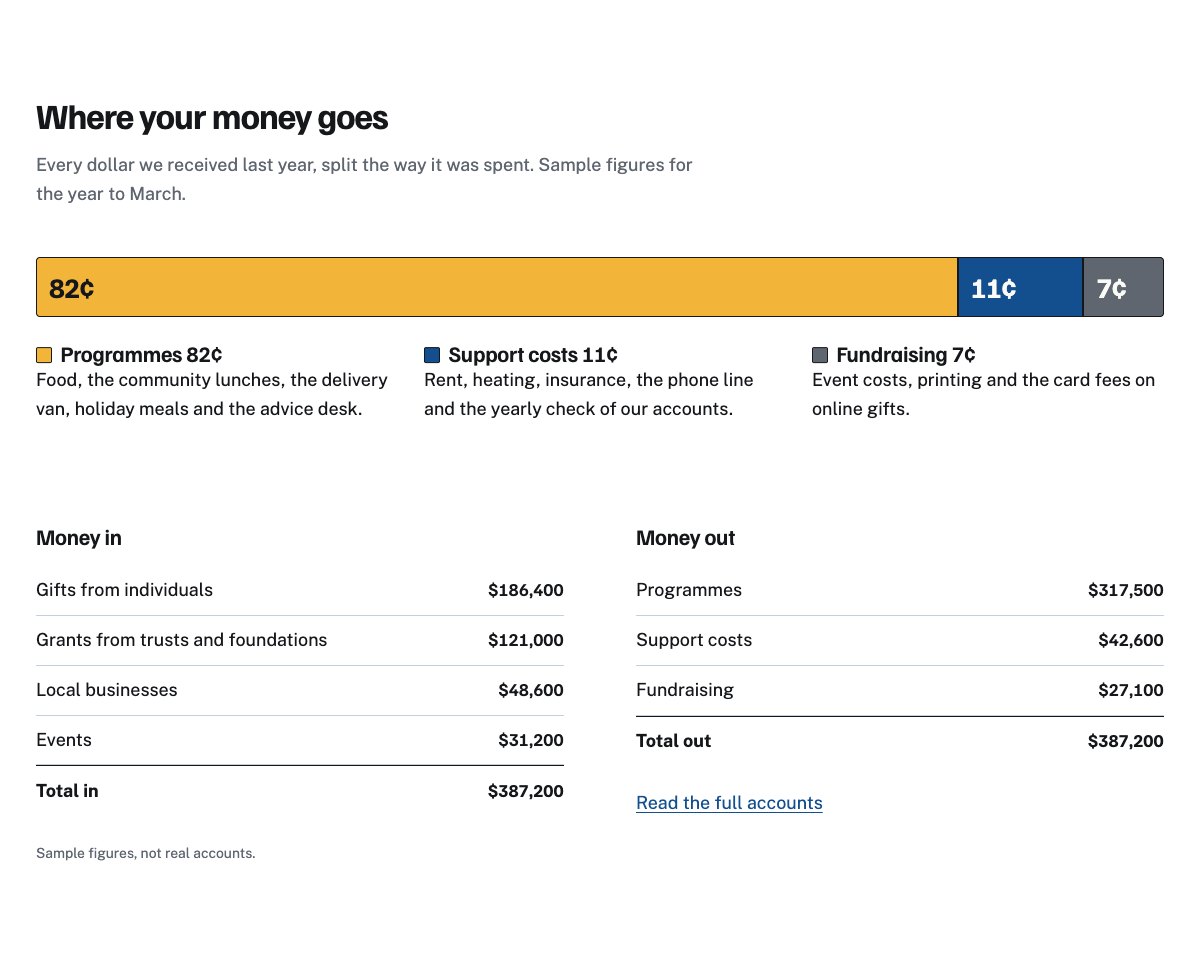
| Where your money goes | One large stacked bar for programmes, support costs and fundraising, a key saying what each part pays for, and money in and money out for the year. |
| Stories | Three short stories from a visitor, a volunteer and a donor, with a consent note (use real stories only). |
| Volunteer with us | How to start in four numbered steps, a van drawing and a sign-up button. |
| Fundraise and events | Dated event rows with a link each, and ways to raise money on your own. |
| Partners | Partner names set in type between two hairlines, no logos. |
| Team and trustees | Four staff portraits with role and bio, and the board of trustees as a list. |
| Reports and accounts | Annual report, accounts and policies as a document list, next to your registration details. |
| This week at the centre | A weekly timetable: one row per day with each session’s time. |
| About the charity | A drawing or photo, your story and three ticked commitments. |
| Frequently asked questions | Receipts and tax, giving food, choosing what a gift pays for, referrals, monthly gifts, privacy. |
| Opening times and location | Opening times, address, phone and a map with directions. |
| Contact details | Get help, give food and everything else, each under a hairline. |
| Donate call to action | Harbour-blue band with what a gift pays for, a marigold Donate button and a Volunteer button. |
| Latest articles | Your three newest blog posts. |
Page layouts (Pro)
- Home page: the complete homepage.
- Our work page: programmes, where the money goes, the weekly timetable, volunteering, FAQ and the donate call to action.
- About page: your story, reports and accounts, staff and trustees, partners, stories and the call to action.
- Contact page: contact details, opening times with map, FAQ and the call to action.
Put your real figures in the stacked bar
The bar has three segments: programmes, support costs and fundraising. Work out each one’s share of your total spending from your latest accounts (they add up to 100). In the editor, select each segment of the bar and set Layout → Width → Fixed to its share (for example 78%), then change its text to the same share in cents. Do the same in the hero card, update the key under the large bar, and fill in money in and money out. Remove the “(sample)” notes only once the figures come from your published accounts.
Demo content to replace
- Phone
(555) 017-0116, email[email protected]and the Linden Street address in Springfield (header, footer, contact sections), and the step-free entrance note. - “Registered charity no. 000000 (sample)” in the hero, footer, reports and donate sections.
- Opening times in the top bar, footer, timetable and opening times section.
- What each gift buys ($10, $25, $50, “Sample costs.”) and the shares 82¢, 11¢ and 7¢ in both bars.
- Money in and money out ($387,200), and the notes “Sample figures for the year to March” and “Sample figures, not real accounts.”
- The five programmes, the timetable (“Example timetable.”), the events and their dates and prices.
- The sample staff, trustees and partner names, their photos, and the sample stories.
- Policies marked “(example policy)” or “(sample answer)”: volunteer ages, referrals, receipts and tax.
- The “Donate online”, “Sign up to volunteer”, event and document links: point them to your own pages.
Write only what is true for your charity. Every figure must come from your own accounts; never say gifts are tax-deductible unless your registration allows it where your donors pay tax. Publish stories only with the written permission of the person who tells them, and do not show people receiving help, or children, in a way that identifies them without permission. Name partners and funders only if they agreed.
Photo guide
Replace the illustrations and placeholder portraits with your own photos: select the image in the editor, then Replace. These sizes look sharp on large screens without slowing the site down.
| Image | Shape | Upload size | Tips |
|---|---|---|---|
| About photo | Landscape 5:4 | 1600 × 1280 px | Volunteers at work, for example packing boxes, seen from behind or the side. |
| Events photo | Landscape 4:3 | 1600 × 1200 px | A shared meal or your kitchen, ideally hands and tables rather than faces. |
| Volunteer photo | Landscape 4:3 | 1600 × 1200 px | Your van or a delivery being loaded. |
| Staff photos | Portrait 4:5 | 800 × 1000 px | Head and shoulders, same background and light for everyone. Ask each person before you publish. |
| Map picture | Landscape 3:2 | 1600 × 1040 px | A screenshot of your map, or keep the illustration; the button links to Google Maps. |
| Blog featured images | Landscape 3:2 | 1600 × 1067 px | Shown on the blog cards and at the top of each post. |
| Logo (header and footer) | Wide or square | At least 200 px tall, PNG with a transparent background or SVG | Shown about 44 px tall. Set it in Appearance → Editor: select the logo block. |
| Site icon | Square | 512 × 512 px | The small icon in browser tabs. Settings → General → Site Icon. |
- Save photos as JPEG or WebP and keep each file under about 300 KB (a free tool such as squoosh.app does this).
- WordPress crops to the shape for you: select the image → Crop in the toolbar to choose which part shows.
- Fill in the Alternative text of each photo (for example “Our reception desk”) for accessibility and Google.
- Only use photos you own or have permission for. Ask clients before you publish photos of them.
Colour styles
Harbour (default: paper white, harbour blue and marigold), Night shelter (dark, with pale blue and amber), Meadow (field green and wheat) and Ember (brick red and saffron). Try them in the live demo with the colour dots in the top bar.
Taking donations
LT Kindora has no built-in donation form. Link the “Donate online” button to your donation page (your payment provider, a giving platform or a donation plugin). The other Donate buttons scroll to that section. Send every donor a receipt, and keep card details off your own site unless your payment provider handles them.