Watch the 2-minute setup
LT Fadecraft is a block theme for barber shops, barbers and men’s grooming studios. See it live in the demo.
Section patterns (Pro)
| Pattern | Use it for |
|---|---|
| Hero with book-a-chair card | Dark hero with headline, buttons, trust points and a card of popular cuts with example prices. |
| Cuts and shaves grid | Eight service cards with icon tiles: fades, scissor cuts, hot towel shaves, beard trims, line-ups, kids cuts, wash and styling advice. |
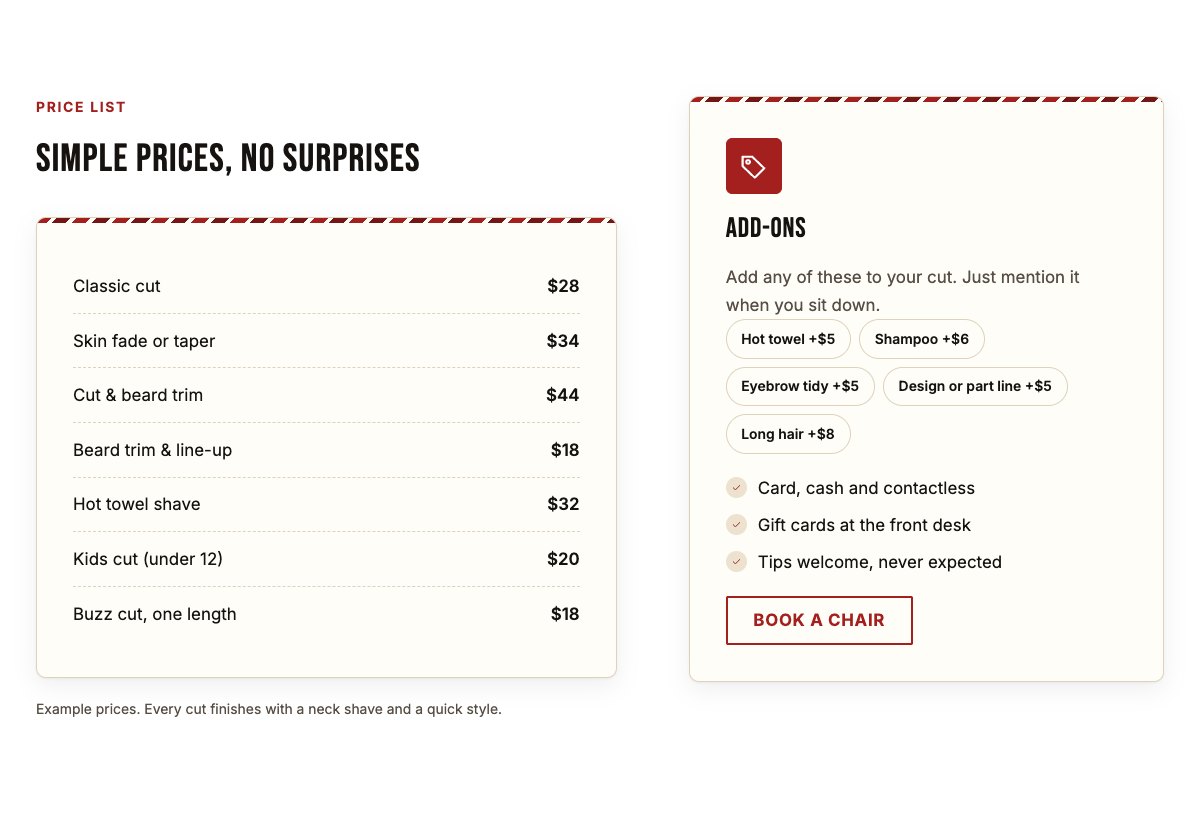
| Price list and add-ons | Price list card next to add-ons (as chips) and payment options. |
| Beard care and hot towel shaves | Beard care story with a checklist, a booking button and an illustration. |
| Products we use and sell | Shelf illustration next to four product cards with example prices. |
| About the shop | Illustration of a barber at work, your story and a checklist. |
| Our barbers | Team cards with photo, role and bio. |
| Gallery of cuts | Four portrait tiles for photos of your own recent cuts and beards. |
| Walk-ins and bookings | Two cards that explain how walk-ins and bookings work, each with a button. |
| Client reviews | Three review cards (use real reviews only). |
| Frequently asked questions | Expandable questions about waiting times, cut durations, kids cuts, payments and cancelling. |
| Opening hours and location | Hours, address, phone and a map with directions. |
| Contact cards | Call, email and visit-the-shop cards. |
| Walk-ins welcome banner | Highlighted strip that invites people to call and check the current wait. |
| Book a chair call to action | Barber-red band with booking and phone buttons. |
Page layouts (Pro)
- Home page: the complete homepage.
- Services page: cuts and shaves, price list, beard care, products and FAQ.
- About page: your story, gallery of cuts, barbers, reviews and walk-ins and bookings.
- Contact page: contact cards, walk-ins banner, opening hours and map.
Demo content to replace
- Phone
(555) 016-4587, email[email protected]and the 27 Elm Street, Springfield address (header, footer, contact sections). - Opening hours (top bar, footer, hours section) and the walk-in and booking rules (last walk-in time, the “2 hours before” change policy, FAQ answers).
- Example prices in the hero card, the price list, the add-ons and the products.
- Barber names, roles and photos; the four gallery pictures; sample reviews.
- The “Book a chair” and “Choose a time” buttons: link them to your booking system.
Only show photos of your own work in the gallery, with your clients’ permission, and only list products you really use or sell. Do not add awards, licences or “best in town” claims you cannot back up.
Photo guide
Replace the illustrations and placeholder portraits with your own photos: select the image in the editor, then Replace. These sizes look sharp on large screens without slowing the site down.
| Image | Shape | Upload size | Tips |
|---|---|---|---|
| About photo | Landscape 5:4 | 1600 × 1280 px | A barber at work in your shop, with the chairs and mirrors in view. |
| Beard care photo | Landscape 5:4 | 1600 × 1280 px | A beard trim or a hot towel shave in progress, with the client’s permission. |
| Products photo | Landscape 5:4 | 1600 × 1280 px | The products you sell on a shelf or counter, without close-ups of other brands’ logos if you prefer. |
| Gallery of cuts | Portrait 4:5 | 1200 × 1500 px | Fresh cuts from the back or side, with a plain background and good light. |
| Barber photos | Portrait 4:5 | 800 × 1000 px | Head and shoulders in the shop, same background for everyone. |
| Map picture | Landscape 3:2 | 1600 × 1040 px | A screenshot of your map, or keep the illustration; the button links to Google Maps. |
| Blog featured images | Landscape 3:2 | 1600 × 1067 px | Shown on the blog cards and at the top of each post. |
| Logo (header and footer) | Wide or square | At least 200 px tall, PNG with a transparent background or SVG | Shown about 44 px tall. Set it in Appearance → Editor: select the logo block. |
| Site icon | Square | 512 × 512 px | The small icon in browser tabs. Settings → General → Site Icon. |
- Save photos as JPEG or WebP and keep each file under about 300 KB (a free tool such as squoosh.app does this).
- WordPress crops to the shape for you: select the image → Crop in the toolbar to choose which part shows.
- Fill in the Alternative text of each photo (for example “Our reception desk”) for accessibility and Google.
- Only use photos you own or have permission for. Ask clients before you publish photos of them.
Colour styles
Default (black, cream and barber red with brass), Pomade, Saddle Leather and Mint Tonic. Try them in the live demo with the colour dots in the top bar.